Use Case Visualising TripGo map data
TripGo is a real-time trip planner available in many cities around the world. As well as their mobile app, the also provide a public API for developers. In this post, we'll show how to use Emblazon to visualise the map data provided by TripGo. More specifically the real-time location of vehicles returned as part of a routing request.
Getting started
To get started, you'll need to sign up for a TripGo API key. You can do this by following the instructions on the TripGo API page. Once you have your key.
You'll also want to create a new scratch pad in Emblazon.
1. Routing request
First we need to make a routing request to TripGo. This will return a list of possible trips, and information about the vehicles travelling along each trip. We'll use the routing API to make this request.
To execute this request we'll use Emblazon's "Http Request" widget. You can add this widget to your scratch pad by typing "/http" and selecting the "Http Request" option. From here we can configure all the standard options for an HTTP request.
The following screenshots show how to configure your routing request. This is for a trip going from Central Station in Sydney to Bondi Beach.

You will need to specify your own TripGo API key in the "X-TripGo-Key" header.
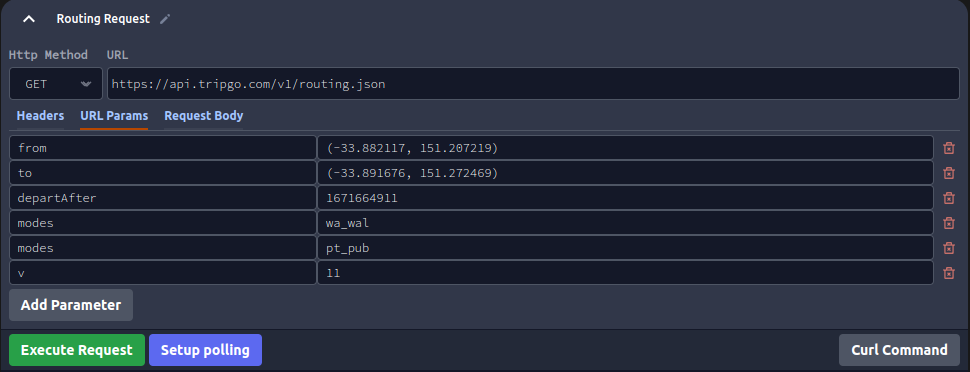
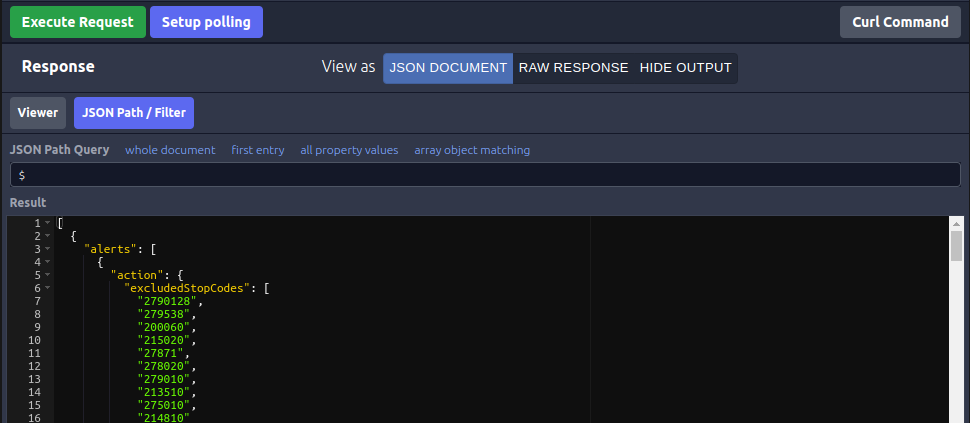
Now just click the "Execute Request" button to make the request. You should see a response like the following:
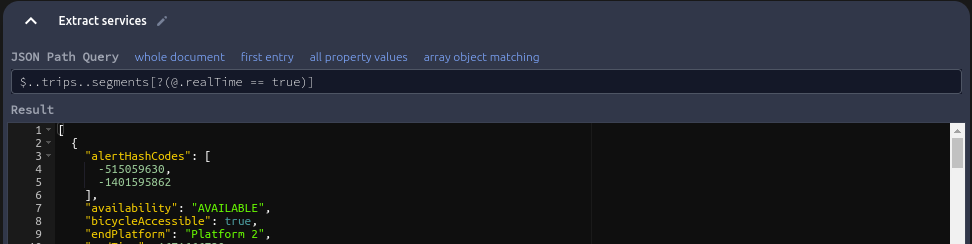
2. Extracting the services
The next step is to extract the services from the response. To do this click the "Filter JSON" option underneath the routing request response. This will let us execute a JSON Path query against the response. The following query will extract the services from the response:
3. Fetching the service locations
Now we have a list of services, we can fetch the locations of the vehicles for each service. To do this we'll use the real time API. This API allows us to fetch the real-time locations of vehicles for a given service. We'll use the "Http Request" widget again to make this request, this time we access it using the "Chain HTTP Request" option underneath the JSON path query result.
The headers are basically the same as our previous request, except we need to specify the "Content-Type" header:
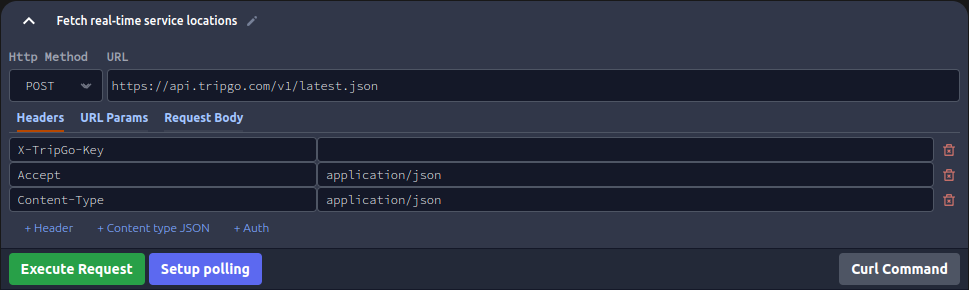
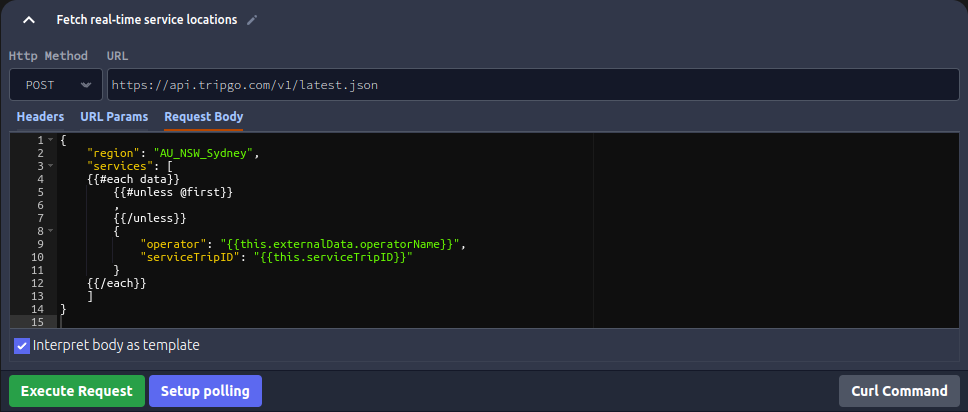
The tricky part of this request is formatting the body of the request with the service ids. To support this Emblazon allows the request body to be specified as a template, which takes the JSON output of the previous step as input. The templating engine used is Handlebars.
4. Showing the locations on a map
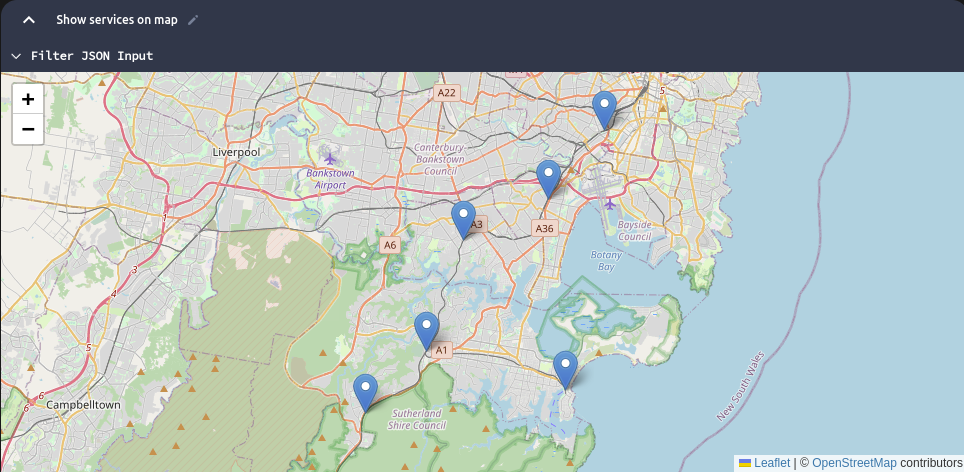
If the previous step executed successfully, we should now have a list of real-time locations for each service. These can be shown on a map by clicking the "Map Coordinates" option underneath the real-time locations response. No other configuration is needed - Emblazon automatically detects the latitude and longitude fields in the response.
Bonus - automatic polling for updates
An optional step is to automatically poll for updates. To do this we click "Setup Polling" instead of "Execute Request". This allows us to execute a request at a given interval. The following configuration will poll every 30 seconds:
